
If you need to understand Chinese text on your Mac screen—inside a video game, an image, a PDF, or hardcoded video subtitles—you have two fundamentally different categories of tools: generic OCR translators that swap Chinese for English, and language-learning companions that keep the original characters visible while explaining pinyin, vocabulary, and grammar.
Most searches for a "Chinese screen translator" point toward generic utilities like ScreenTranslate, Bob, iText, or Google Lens. These tools capture a rectangle on your desktop, run optical character recognition (OCR), send the text to a machine translation engine, and paste an English block over your screen. If your only goal is completing a billing form or understanding a system error message, that is all you need.
If you are actively learning Mandarin, however, generic screen translation has a hidden cost: it hides the very language you are trying to acquire. To turn screen immersion into long-term vocabulary retention, you need tools that preserve the Chinese characters, expose word boundaries, provide tone-marked pinyin, and let you export unknown sentences into spaced repetition.
The core problem: translating vs. learning
Reading Chinese on a computer presents a unique challenge that alphabetic languages do not share. Chinese text does not use spaces between words. When a native reader sees 屏幕翻译 (píngmù fānyì), their brain instantly parses two distinct words: 屏幕 (píngmù, screen) and 翻译 (fānyì, translation). An intermediate learner, by contrast, often cannot tell where one word ends and the next begins.
When you use a standard screen translator on an image or video subtitle, three things typically go wrong for a language learner:
- The Chinese disappears: Generic tools overlay the English translation directly over the image or pop open an English-only dialogue box. You read the English translation, feel that you understood the scene, and move on without looking at the underlying characters.
- No pronunciation support: Machine translation models (DeepL, Google Translate) output English prose. They do not provide tone-marked pinyin for the Chinese words, so you cannot pronounce the phrase you just encountered.
- Zero retention: Once you dismiss the translation window, the word is gone. Without an easy bridge into flashcards or Anki, you will look up the exact same word the next time it appears on screen.
Option 1: macOS Live Text (free and built-in)
Before installing third-party utilities, check whether Apple's built-in Live Text feature covers your immediate need. Live Text has been integrated into macOS since version 12 (Monterey) and runs fully on-device on Apple silicon Macs.
Live Text works inside Safari, Preview, Photos, and Quick Look. When an image contains Chinese characters, your mouse pointer changes from an arrow to a text selection beam. You can drag to select the characters just like normal web text.
To use Live Text for translation:
- Open the image, screenshot, or PDF in Preview or Safari.
- Hover your pointer over the Chinese text until the text cursor appears.
- Select the text and right-click to choose
Translate. - A system sheet appears with the English translation, along with an option to copy the recognized text.
Live Text has real strengths: it is free, fast, built into the operating system, and respects privacy by processing images locally without sending pixels to third-party servers. For static PDFs and standalone image files, it requires zero setup.
However, Live Text has notable limitations for learners. It cannot hover-inspect dynamic application windows or paused video players in third-party apps without taking a manual screenshot first. Crucially, the built-in system translator does not provide pinyin, character breakdown, or spaced-repetition export.
Option 2: Generic OCR screen translators
Third-party screen translators typically add a global keyboard shortcut that freezes your screen, lets you drag a rectangular snip box, and displays a translation overlay. Popular Mac tools in this category include Bob (an extensible translation manager popular in China), iText, and various cross-platform Electron utilities.
These tools generally operate through a three-step pipeline:
- Screen grab: The utility requests macOS Screen Recording permission to capture the selected screen region.
- OCR engine: The pixels are converted to text using Apple's Vision framework (on-device) or an online OCR API (Baidu, Tencent, Google Cloud Vision).
- Translation API: The recognized Chinese text is sent to a cloud translation service (DeepL, OpenAI, Google) to produce an English paragraph.
For non-learners, this pipeline is effective. You can configure Bob or iText to translate Japanese game menus, Chinese software interfaces, or scanned business documents in seconds.
For Chinese learners, the friction points remain unaddressed. If a sentence contains one unfamiliar term, generic translators will not show you the dictionary definition of that specific term. They treat the entire captured box as an opaque paragraph. Furthermore, many of these utilities require you to supply your own API keys for translation and OCR, which adds recurring costs and configuration complexity.
Feature comparison: generic vs. learner tools
Here is how the main approaches to translating Chinese on a Mac screen compare across the features that matter to language learners:
| Feature | macOS Live Text | Generic Screen Translators | Learner Companion (Zhenzhu) |
|---|---|---|---|
| Primary purpose | General text extraction | Fast English replacement | Reading comprehension & vocabulary acquisition |
| Trigger method | Select in Preview/Safari | Global snip shortcut | Global snip shortcut, selection button, or hover |
| OCR processing | On-device (Apple Vision) | Varies (cloud or local) | On-device (Apple Vision, private & offline) |
| Chinese text visibility | Selectable characters | Often replaced or hidden | Fully visible with word highlighting |
| Tone-marked pinyin | No | Rarely (or raw numbers) | Yes, standard tone marks on every word |
| Word segmentation | No (whole phrase) | No | Yes, clickable word chips showing boundaries |
| Dictionary definitions | System dictionary lookup | Basic or none | Comprehensive CC-CEDICT definitions & HSK levels |
| Flashcard / Anki export | No | No (manual copy-paste) | One-click sentence mining with screenshot & audio |
| Price | Free (included with macOS) | Free to ~$30 + API fees | Free tier (15 cards, 20 OCR/mo); $29 one-time Pro |
The learner workflow: how Zhenzhu approaches screen text
Zhenzhu was built specifically to solve the gap between raw screen OCR and language acquisition. Instead of treating screen capture as an administrative task to get English on screen, it treats every pixel capture as an opportunity to study native Chinese in context.
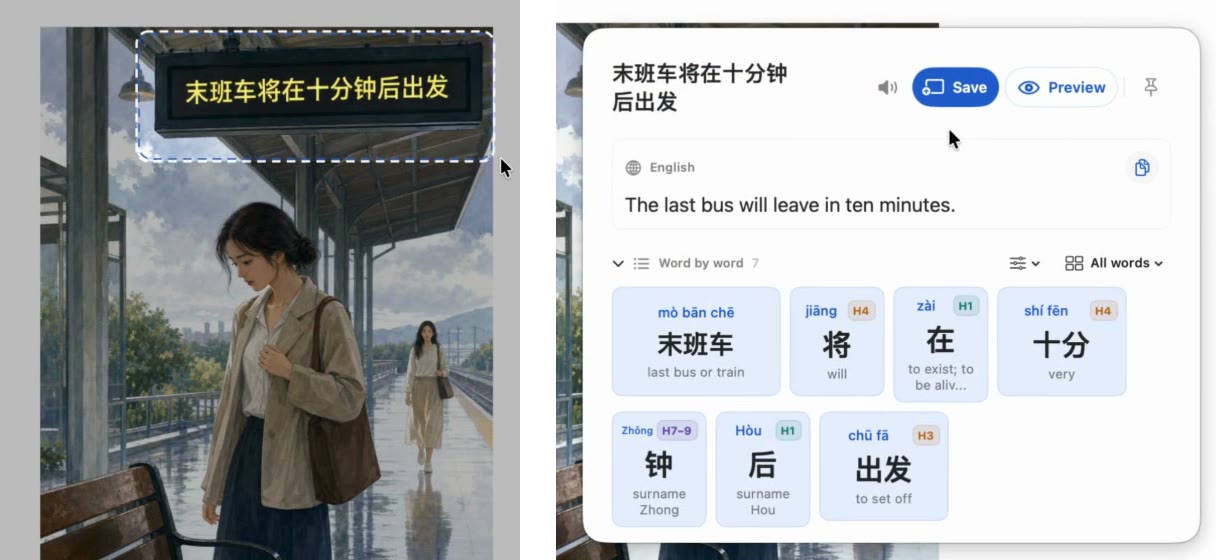
When you encounter Chinese text that cannot be selected normally—such as hardcoded drama subtitles, web comics, images on Xiaohongshu, or desktop applications—the workflow runs through four distinct stages:
1. Snip without leaving your context
Pressing a global keyboard shortcut freezes the display. You drag a box over the Chinese phrase. The app processes the image locally using Apple's Vision framework, so lookups stay fast and never send your screen contents to an external server.
2. Inspect words and sentence structure
Rather than simply showing an English translation, the lookup panel breaks the sentence down into its constituent words. You can see tone-marked pinyin, HSK levels, and CC-CEDICT definitions for each individual term. If the OCR engine grouped characters unexpectedly, you can merge or split words with a click.
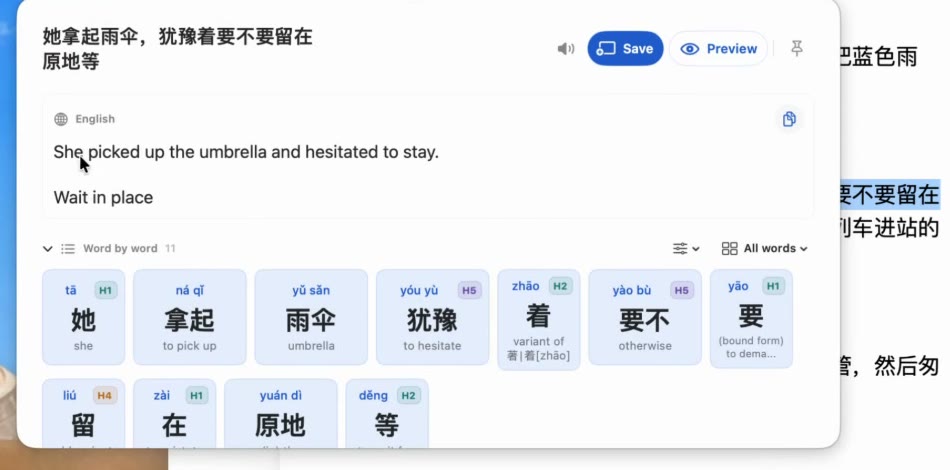
3. One-click sentence mining
If the sentence contains an unfamiliar word that fits your learning level (an i+1 sentence), clicking Mine saves the full sentence as a flashcard. The card automatically stores the target word, pinyin, definition, sentence translation, and the snipped image frame as visual context.
You can review cards directly within the app using its built-in FSRS spaced repetition scheduler, or export them seamlessly into Anki. To learn more about setting up an effective spaced repetition habit, see our guide to Chinese sentence mining with Anki on macOS.
Which tool should you pick?
The right tool depends entirely on what you want to achieve with the text in front of you:
- Use macOS Live Text if you already have an image or document open in Preview or Safari, only need a quick one-off translation, and do not intend to study the vocabulary.
- Use generic utilities like Bob or iText if you regularly need quick translations of desktop software interfaces, error logs, or business emails where you have no interest in learning Chinese.
- Use a dedicated learner tool like Zhenzhu if you are reading Chinese web novels, watching C-dramas, browsing Chinese social media, or playing games in Mandarin, and your goal is to expand your active vocabulary through immersion.
For a detailed breakdown of desktop dictionary tools and web browser extensions, check our comparison of the best Chinese reading tools and dictionaries for Mac.
How this guide was made
This comparison was compiled by testing built-in macOS 15 Live Text capabilities against popular desktop OCR tools and Zhenzhu 1.1. Chinese vocabulary examples and pinyin were verified against CC-CEDICT. Pricing, API details, and feature specifications reflect macOS 15 compatibility as of November 2026.
Read Chinese on your Mac without friction
Selection lookup, on-device OCR, pinyin tone marks, HSK context, and 1-click Anki export. Try Zhenzhu Free today on macOS 15+.