
The best Japanese immersion material—visual novels, JRPG dialogue boxes, raw manga volumes, scanned JLPT textbooks, and hardcoded anime subtitles—shares one annoying trait: you cannot highlight the text. Every character is baked into pixels.
If you are on macOS, you no longer need to point your phone camera at your MacBook screen or juggle brittle Python OCR pipelines. Here is how to set up a clean, fast Japanese screen translator on Mac that actually helps you learn the words you look up.
Why normal translators fail on games and manga
Most learners try one of three workarounds before looking for a dedicated macOS screen translator:
- Phone camera (Google Translate): Breaks immersion completely, mangles stylized game fonts, and gives you a rough English gloss with no furigana or dictionary breakdown.
- macOS Live Text in Preview: Works on static screenshots, but you have to take a screenshot, open it, copy the text, paste it into a dictionary, and delete the screenshot afterward.
- Cloud screen-translator apps: Upload your screen crops to remote servers, add noticeable latency, and charge monthly subscriptions.
A purpose-built Mac learning tool like Zhenzhu runs Apple’s on-device Vision OCR directly on your Mac, then immediately passes the recognized Japanese text through a local deinflector and JMdict dictionary.
How Snip-to-Translate OCR works on macOS
With Zhenzhu running quietly in your menu bar, translating any unselectable Japanese region takes three seconds:
- Press your global Snip shortcut while your game, manga reader, PDF, or paused video is on screen.
- Drag a box around the dialogue box, speech bubble, or subtitle line.
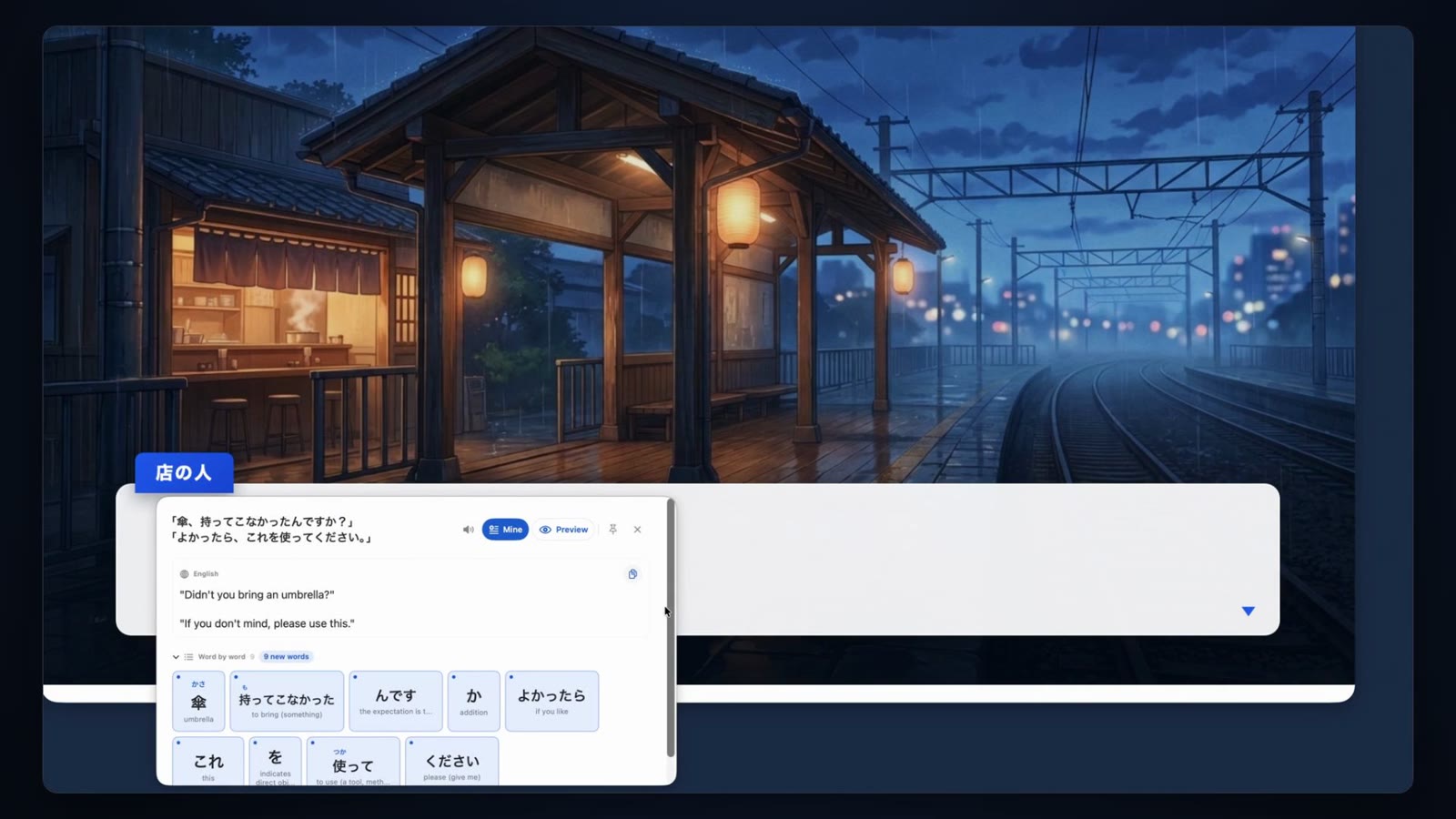
- Read the popup right where you snipped: Zhenzhu shows the recognized Japanese text, a natural English translation, and clickable word-by-word tiles with furigana and meanings.
Beyond machine translation: word-by-word breakdown
A plain English translation lets you move past a dialogue box, but it does not teach you why the sentence meant what it meant. In Japanese, the meaning is often hidden inside verb conjugations and particles.
When Zhenzhu recognizes a line like 「傘、持ってこなかったんですか?」, it does not stop at “Didn’t you bring an umbrella?”. Click any tile in the breakdown—like 持ってこなかった—and Zhenzhu deinflects it to its dictionary form with furigana, JLPT level, and full JMdict entries. If you are coming from browser extensions, read our Yomitan alternative for Mac comparison to see how this compares to Chrome-only setups.
4 tips for higher Japanese OCR accuracy
On-device Vision OCR is remarkably accurate on clean Japanese fonts, and four small habits push it close to 100%:
- Crop tightly around the text: Exclude character portraits, UI icons, and noisy backgrounds—especially in visual novels with translucent text boxes.
- Capture one speech bubble at a time in manga: Vertical Japanese text reads cleanly when a single bubble is selected; mixing two adjacent bubbles can scramble line order.
- Pause motion before snipping video: Pausing anime or YouTube streams for a split second eliminates compression blur around small kanji strokes.
- Use Hover Lookup for quick single words: When you only need one kanji compound on screen, Hover Lookup lets you point and inspect without dragging a selection box.
Turn game & manga lines into flashcards in one click
Because Zhenzhu already has the cropped screenshot, the recognized Japanese sentence, the furigana, and the JMdict definition, saving a new word takes a single click:
- Built-in FSRS decks: Click Save to review directly inside Zhenzhu using modern FSRS spaced repetition—no third-party setup required.
- 1-click AnkiConnect: If your main deck lives in Anki, enable local AnkiConnect on Mac and send cards with sentence context, image, and audio straight to your deck.
On-device privacy and macOS Screen Recording
To read pixels from another window, macOS requires you to grant Screen Recording permission in System Settings → Privacy & Security. Zhenzhu only captures the exact area you snip (or the small region under your cursor when Hover Lookup is active), runs OCR locally on your Mac, and never uploads your screen captures or reading history to a server.
How this guide was made
Written by the Zhenzhu team based on testing on-device Japanese Vision OCR in Zhenzhu 1.2 on macOS 15 across visual novel dialogue boxes, vertical manga pages, and scanned PDFs. All product capabilities and Free/Pro limits match the live Zhenzhu 1.2 release.
Read Chinese on your Mac without friction
Selection lookup, on-device OCR, pinyin tone marks, HSK context, and 1-click Anki export. Try Zhenzhu Free today on macOS 15+.