
Sentence mining—saving real Japanese sentences you just encountered instead of grinding premade vocab lists—works because your brain already attached a scene, voice, or story to the word. The only reason people quit is friction: if creating one Anki card takes 45 seconds of copy-pasting, you stop mining within a week.
This guide walks through a clean, low-friction Japanese sentence mining workflow on macOS—from wiring up AnkiConnect and enabling FSRS to capturing words from web pages, PDFs, manga, and visual novels in a few seconds.
What makes a Japanese sentence card actually stick
A good Japanese sentence card is minimal on the front and rich on the back. Every time you flip a card, your brain should test reading in context, not guess a word from furigana spoilers:
- Front: The target word (or the full Japanese sentence with the target word highlighted), no furigana and no English.
- Back: Dictionary form (jishokei), hiragana reading, concise English (or monolingual) gloss, full sentence with furigana, and natural audio.
- The i+1 rule: Only mine a sentence when you already understand the grammar and every other word except the one new target word. If a sentence has three unknown words, skip it—you will meet each of those words again in cleaner sentences.
Two ways to mine Japanese on macOS
On a Mac, you have two solid engines for one-click card creation:
| Workflow | Best for | Works outside Chrome? | Setup time |
|---|---|---|---|
| Yomitan + AnkiConnect | Browser-only reading (Syosetsu, NHK, ASBPlayer subtitles) + custom monolingual dictionaries | No (Chrome & Firefox tabs only) | 30–60 min (ZIP imports + Handlebars card fields) |
| Zhenzhu + AnkiConnect (or built-in FSRS) | Mining across browsers, PDFs, Kindle, manga, visual novels, and native Mac apps | Yes (system-wide + on-device OCR) | ~2 min (built-in JMdict, deinflector, and AnkiConnect) |
If you want a deeper comparison of browser extensions versus native desktop apps, see our Yomitan alternative for Mac guide. Both workflows use the exact same AnkiConnect bridge on macOS.
Step 1: Connect Anki on your Mac (2 minutes)
Whether you mine with Yomitan or Zhenzhu, Anki needs the free AnkiConnect add-on so external tools can push cards directly into your deck:
- Open Anki on your Mac and go to
Tools → Add-ons → Get Add-ons…. - Enter code
2055492159(AnkiConnect) and click OK. - Restart Anki and leave it open in the background while you read.
On macOS, remember one quirk: if Anki is hidden or minimized for a long time, macOS App Nap can pause AnkiConnect's local port (127.0.0.1:8765). Our dedicated AnkiConnect on Mac troubleshooting guide covers the one-line terminal fix if you ever hit connection timeouts.
Step 2: Capture sentences from browser, PDFs, and manga
The biggest productivity jump comes from removing copy-paste from your reading loop:
- Selectable text (Safari, Chrome, Preview PDFs, Kindle, Obsidian): Hover or select the unknown Japanese word, read the JMdict definition in the popup, and click Save / Export to Anki. Keep reading without leaving the window.
- Image-based text (manga, visual novels, hardcoded anime subs): Use Snip OCR (
Cmd + Shift + 2in Zhenzhu) to box the speech bubble or subtitle line. Apple Vision extracts the Japanese text on-device, lets you click the unknown word, and saves the full sentence cleanly. For manga-specific OCR tips, read our Japanese manga & visual novel OCR on Mac guide.
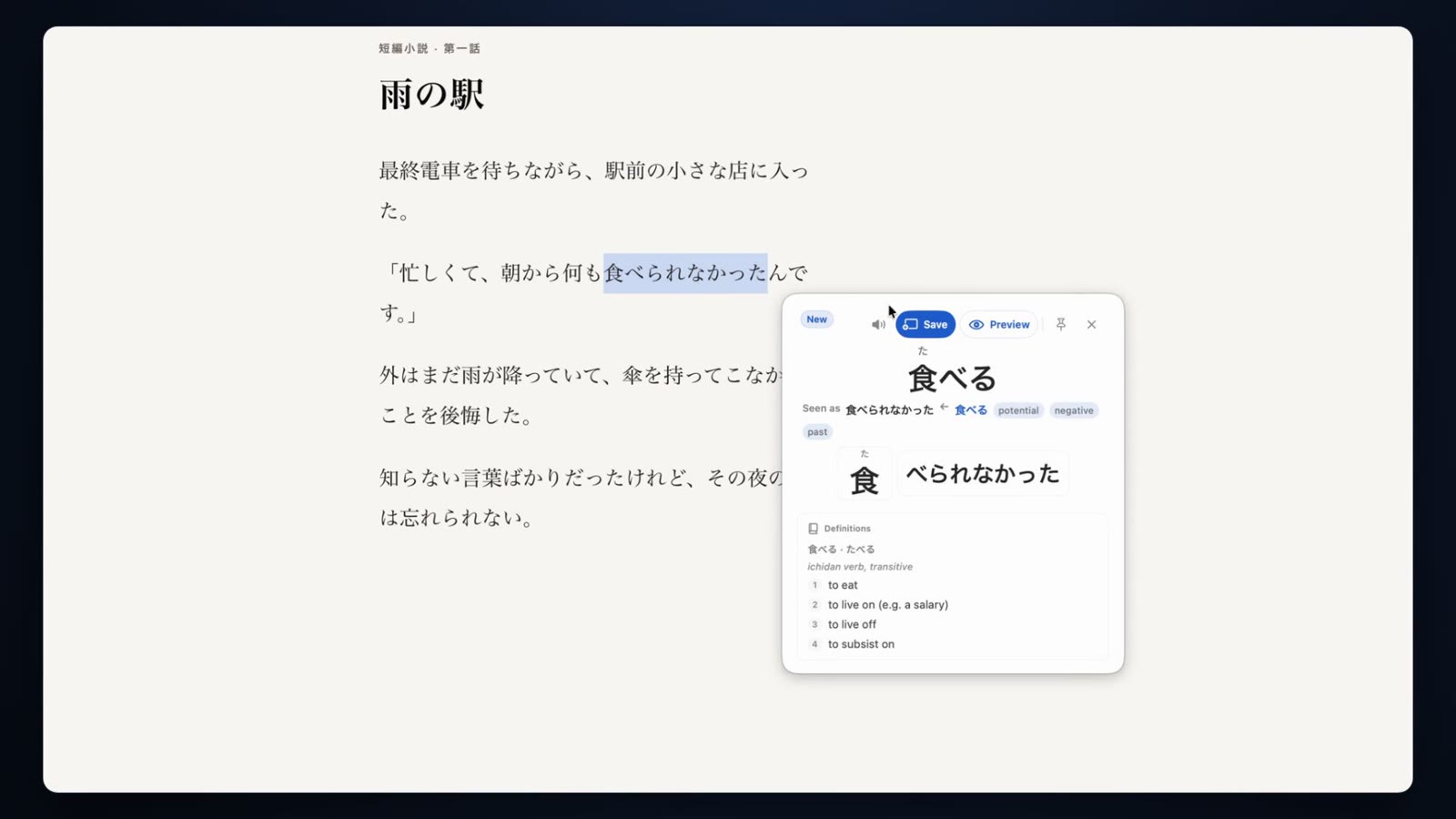
Step 3: Keep the dictionary form and reading clean
When you encounter a verb like 食べられなかった ("could not eat") in a novel or game, you want the sentence field to preserve the exact quote you read, while the headword field stores the dictionary form 食べる (taberu). That way:
- Your deck does not fill up with five duplicate cards for 食べる, 食べた, 食べない, and 食べられた.
- You recognize the root verb immediately the next time you see it in a different conjugation.
Step 4: Turn on FSRS and cap daily new cards
If you review in Anki (version 23.10+), open Deck Options → FSRS, toggle Enable FSRS on, and set your desired retention to 0.85–0.90. FSRS schedules reviews far more efficiently than Anki's legacy SM-2 algorithm, cutting daily review load by 20%–30% for the same recall rate.
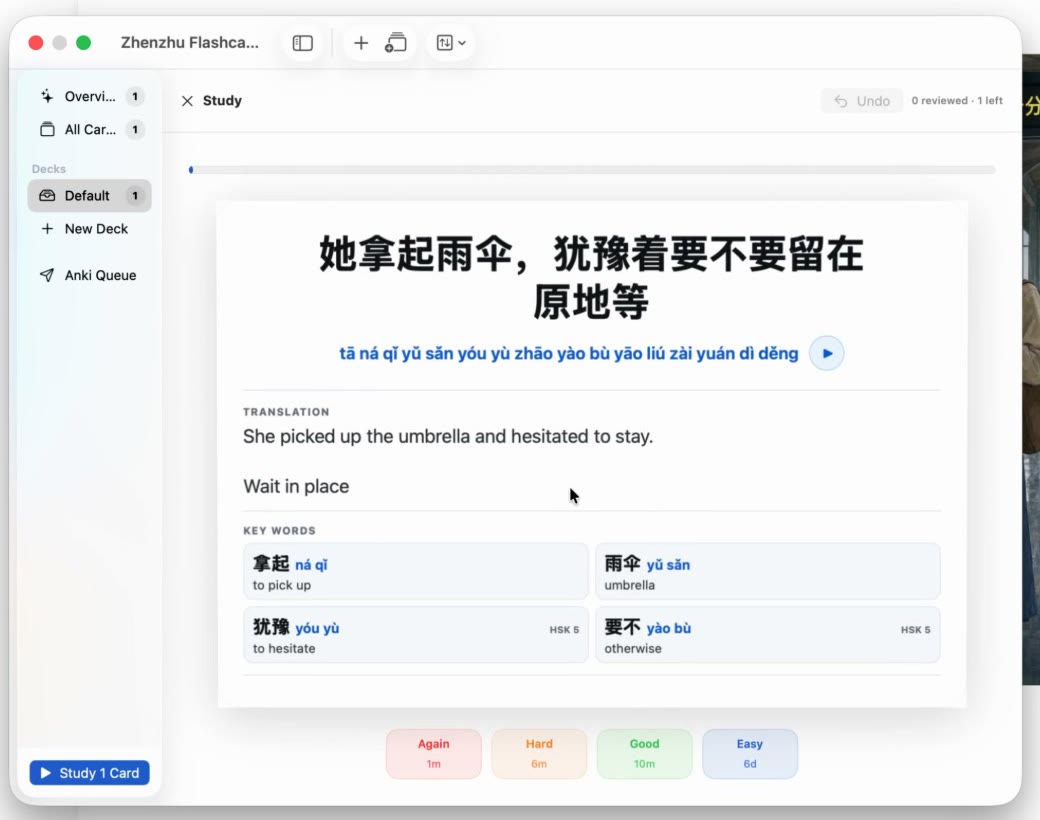
If you do not want to manage Anki at all, Zhenzhu also includes a built-in FSRS spaced-repetition deck right on your Mac, so you can mine and review in one lightweight app—and still export to Anki later whenever you want.
Four sentence mining traps to avoid
- Mining 40 cards a day in week one: 40 new cards/day turns into 250+ daily reviews a month later, which kills your actual reading time. Cap yourself at 10–15 new cards/day and spend the rest of your energy reading.
- Mining rare words you will not see for a year: If a word is a medieval weapon or obscure plant name in a fantasy novel, just look it up to enjoy the scene and move on.
- Putting furigana on the front of the card: Your eyes will always read the kana first, and you will never build real kanji recognition. Keep readings on the back.
- Spending more time tweaking Anki CSS than reading: Pick one clean card layout, lock it in, and get back to your book, manga, or show.
How this guide was made
Workflow steps and AnkiConnect add-on details were verified on macOS 15+ with Anki 24+ (FSRS enabled) and Zhenzhu 1.2.0 (offline JMdict + Swift deinflector, Apple Vision on-device OCR, local FSRS review, and AnkiConnect export).
Read Chinese on your Mac without friction
Selection lookup, on-device OCR, pinyin tone marks, HSK context, and 1-click Anki export. Try Zhenzhu Free today on macOS 15+.